
Employee Self-Service (ESS)
ESS access for casual staff
About ESS
ESS enables you to:
- view, download and print your payslips and P60s
- add or amend your address, phone numbers, email addresses and emergency contact details
- view your sickness record
- update your qualifications and personal equality data.
Accessing ESS for the first time
Guidance with screenshots can be found below these steps.
- You will receive an email invitation to access ESS. Select the Accept invitation link at the bottom of the email, then select Send code.
- You will receive an email with a unique code. Enter the code, then select Sign in. Read the permission request, then select Accept.
(You may need to wait 24 hours to access ESS.) - Select the link https://www.uwe.ac.uk/hronline-ess, then select Single Sign-on account, and Next.
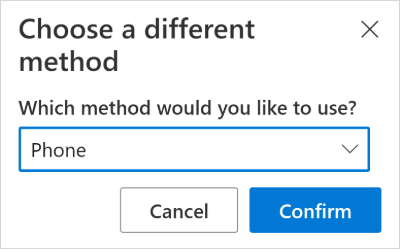
- Select I want to set up a different method at the bottom of the screen (do not download the MS Authenticator App). From the dropdown list select Phone, then Confirm.
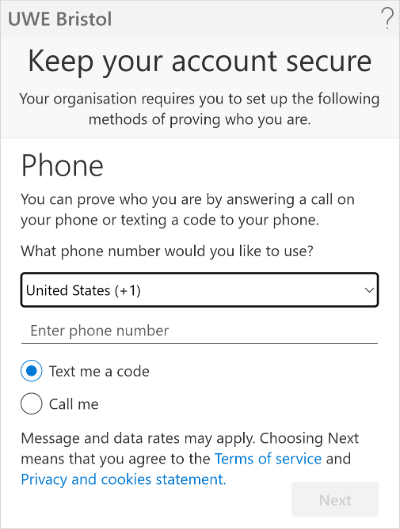
- Select your dialling code from the dropdown list and enter your phone number, then select Next.
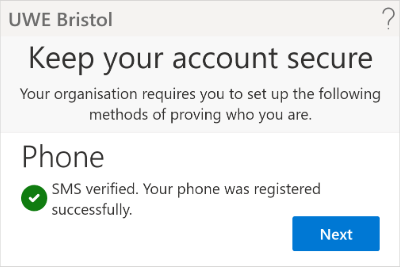
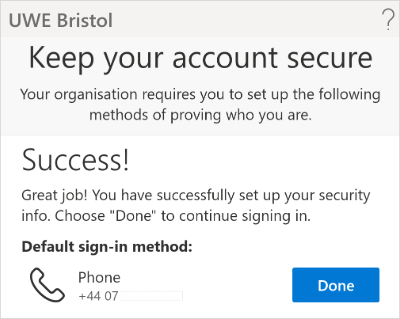
- You will receive a text message with a unique code. Enter the code, then select Next, Next, and Done.
You can now continue logging onto ESS.
Accessing ESS for the first time (with screenshots)
- You will receive an email invitation to access ESS. Select the Accept invitation link at the bottom of the email, then select Send code:

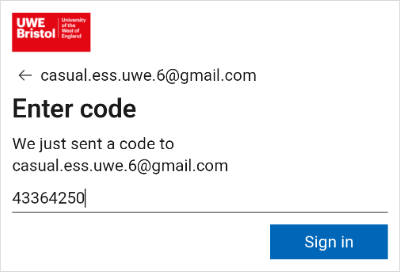
- You will receive an email with a unique code. Enter the code, then select Sign in:
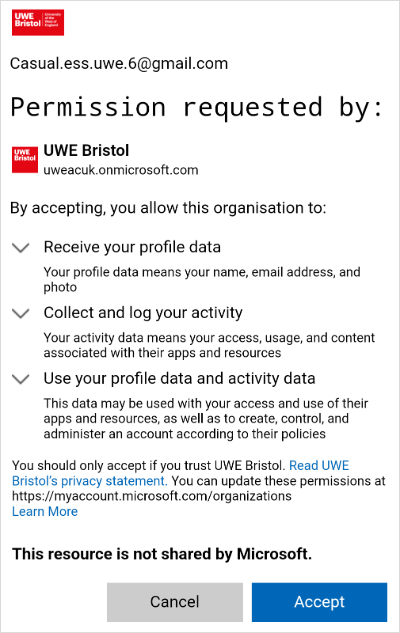
- Read the permission request, then select Accept.
(You may need to wait 24 hours to access ESS):
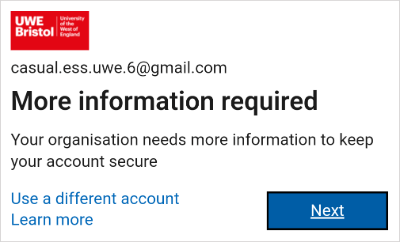
- Select the link https://www.uwe.ac.uk/hronline-ess, then select Single Sign-on account:

- Select Next:
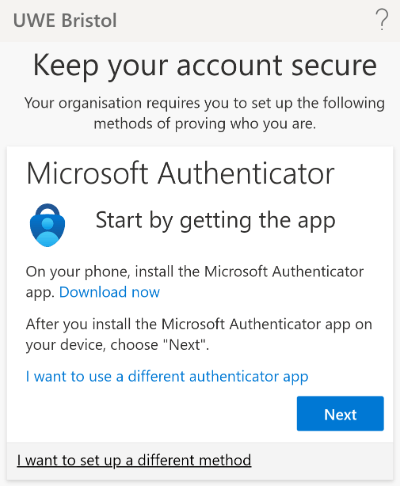
- Select I want to set up a different method at the bottom of the screen (do not download the MS Authenticator App):
- Select Phone from the dropdown list, then select Confirm:
- Select your dialling code from the dropdown list and enter your phone number, then select Next:
- You will receive a text message with a unique code. Enter the code, then select Next:

- Select Next:
- Select Done:
You can now continue logging onto ESS.
Logging onto ESS
Guidance with screenshots can be found below these steps.
- Go to https://www.uwe.ac.uk/hronline-ess, select Single Sign-on account, then select the email account you registered with.
- You will receive an email with a unique code. Enter the code, then select Sign in, and Text.
- You will receive a text message with a unique code. Enter the code, then select Verify. You will be redirected and successfully logged in to ESS.
You can now access your payslip(s) and mandatory training.
Logging onto ESS (with screenshots)
- Go to https://www.uwe.ac.uk/hronline-ess, select Single Sign-on account:
- Select the email account you registered with:
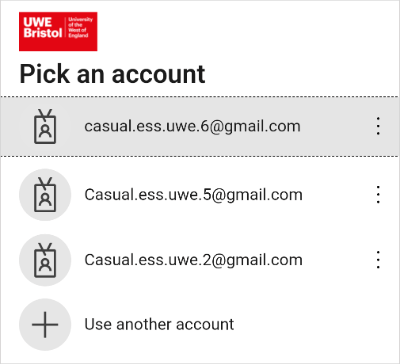
- You will receive an email with a unique code. Enter the code, then select Sign in:
- Select Text:
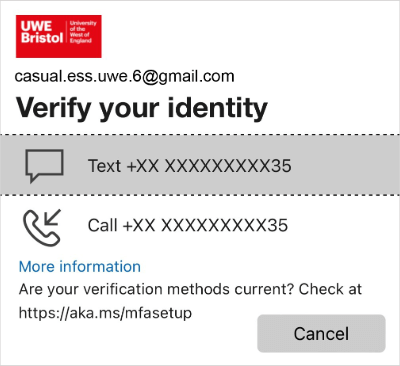
- You will receive a text message with a unique code. Enter the code, then select Verify:

- You will be redirected and successfully logged in to ESS.
You can now access your payslip(s) and mandatory training.
You may also be interested in

Work at UWE Bristol
UWE Bristol is proud of its diverse workforce and welcomes new job applicants from all backgrounds and communities.

Our values, vision and strategy
Our core purpose, ambition, strengths and values, including details about our Strategy 2030.

Ranking and reputation
Find out more about UWE Bristol's employability figures, league table positions and other important University rankings and metrics.

Log in to UWE Bristol
Log in to student and staff systems, including: MYUWE, email, Blackboard, Library account, and UWE Welcome for applicants.